
Why Your Printer Always Jams When You’re in a Hurry
The 3 most common causes of small office printer failure — and what to do about each one.
It’s a rule of small business ownership: the printer works flawlessly for eleven months and then fails spectacularly the morning the proposal is due.
It feels random. It isn’t. Printer failures in small offices cluster around the same three causes, over and over. And every single one of them is preventable with a routine that takes less time than a coffee break.
Here’s what’s actually happening, and how to stop it.
Failure #1: Paper Path Problems
Jams, misfeeds, and double-feeds are the most common complaint we hear from small offices across the Quad Cities. Almost every time, the cause is one of four things: worn feed rollers that can no longer grip paper cleanly, wrong paper weight for the device’s specifications, humidity-damaged stock stored in a warm closet or near a window, or overfilled trays that the separation mechanism can’t handle reliably.
The fix: check your paper before you load it. Store it flat, in a cool dry space. Don’t fill the tray past the max-fill line. And if jams are becoming a pattern rather than an occasional event, the rollers may need replacement — which is a standard part of any on-site printer maintenance visit in Davenport or anywhere else in the QC.
Failure #2: Consumable Issues
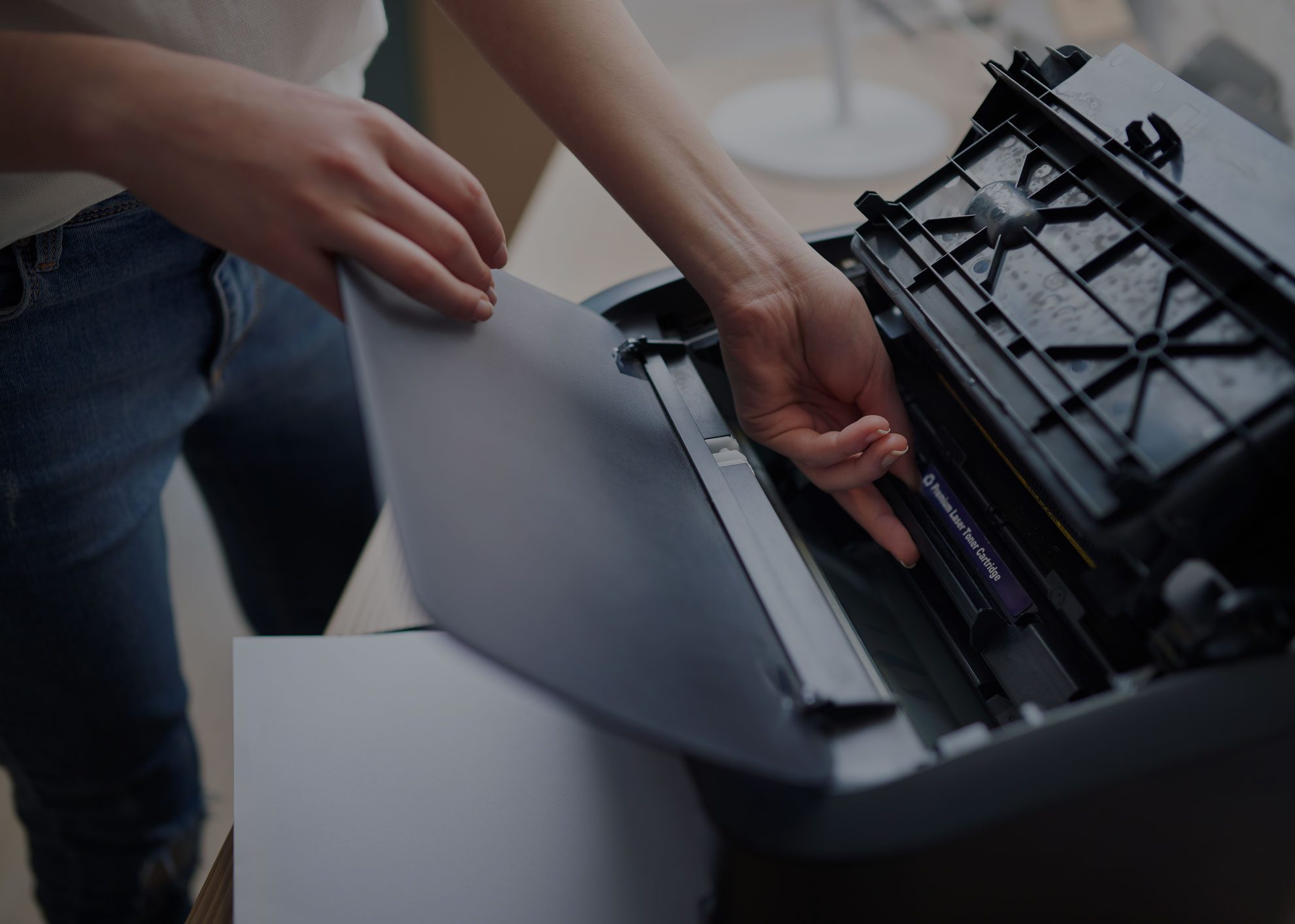
A toner cartridge running below 10% doesn’t just print light. It triggers error states that stop the machine entirely. Drum unit degradation produces ghost images — faint shadows of previous documents appearing on every new page.
Both of these failures announce themselves well in advance through the supply indicators in your printer software. The failure happens because nobody was watching.
The fix is simple inventory management. Whether you’re ordering toner cartridges through a local supplier, setting up bulk ink delivery for a multi-device office, or sourcing a cartridge refill near Moline, the rule is the same: replace at 20%, not at empty. Keep one spare on the shelf at all times.
Failure #3: Connectivity and Firmware Conflicts
This one is the most frustrating because there’s nothing physically wrong with the printer. The machine is fine. Jobs are stuck in the queue. The driver stopped responding after a Windows update. The wireless connection dropped when the router firmware changed.
These failures feel mysterious because they’re invisible. But they follow a pattern: they happen after something else changed — an OS update, a network configuration shift, or a new computer added to the office.
The fix: keep firmware and drivers current. Check the manufacturer’s support page quarterly. When you add a new computer to the network, reinstall and test the printer connection before you need it in a crunch.
The 15-Minute Monthly Routine That Prevents All Three
Most printer failures don’t require a technician. They require consistency. Assign one person in your office to spend 15 minutes on the first Monday of every month:
- Run a test page and inspect the output
- Check toner and drum supply levels, and order if under 20%
- Load fresh paper, inspect for moisture or curl
- Clear all access panels and check for paper fragment debris
- Verify firmware version and check for driver updates
- Confirm the print queue is clear
That’s it. Fifteen minutes of prevention against hours of reactive scrambling.
If you’d rather have a professional handle the assessment, our team provides on-site printer maintenance across Davenport and the Quad Cities — including a full equipment check that catches issues before they become failures.
Next week: Is a $150 service call actually worth it for a $300 printer? The math most small business owners get wrong, and the repair decision framework that gets it right.
Back to the Full Guide: CartridgeInkQC.com/never-get-sidelined